1Getting started¶
To load this package in LaTeX, type
or load TikZ and then type
This package is compatible with other TeX formats as well. See §1.5 and §1.6.
1.1Creating a diagram¶
The basic tool to create a commutative diagram is the following environment.
-
\begin{tikzcd}[⟨options⟩] ¶
-
⟨environment contents⟩
-
\end{tikzcd}
The environment contents should describe a matrix, as in LaTeX’s familiar {tabular} environment. The optional argument ⟨options⟩ may be used to modify the appearance of the diagram. Any of the customization keys described in this manual, as well as those originally provided by TikZ, can be used here. Arrows between matrix entries can be created with the \arrow command described below.
Everything inside {tikzcd} is typeset in math mode, but you will probably want to use it inside an {equation} environment or \[ …\], so that the diagram is placed on a new line and centered.
It is important to note that dvi viewers will not display diagrams correctly. It is necessary to convert the dvi file to pdf or ps format—or, even better, use a tool that generates pdf files directly, such as pdflatex.
1.2Inserting arrows¶
Inside the {tikzcd} environment, the following synonymous commands are provided to produce arrows.
Here, ⟨options⟩ is a comma-separated list of options which can be used to specify the arrow target, add labels, change arrow tips, and perform additional modifications.
The arrow target can be specified by a direction parameter, which consists of a string of characters r, l, d, u (standing for right, left, down and up). Labels can be placed on an arrow by means of the quotes syntax, described in detail in the pgf manual [2, label quotes]. Notice the use of "\phi" in the example below.

To further modify the appearance of an arrow, note that ⟨options⟩ may contain any key that can be passed to TikZ’s \path command. Similarly, a label can receive additional options via the syntax
-
"⟨label text⟩"⟨label options⟩.
Both ⟨label text⟩ and ⟨label options⟩ need to be enclosed in curly braces if they contain commas.
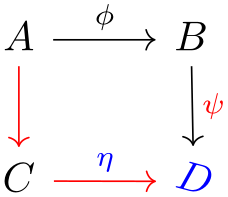
The example above also showcases one of the possible ways to pass special options to a TikZ matrix node. See the pgf manual [2, matrices] for more information.
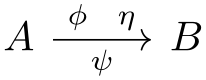
Arrows can have an arbitrary number of labels, by repeated use of arguments in quotes. The example below shows how to control the positioning of labels. Notice in particular that an apostrophe as ⟨label option⟩ causes the label to be placed on the opposite side of the arrow.
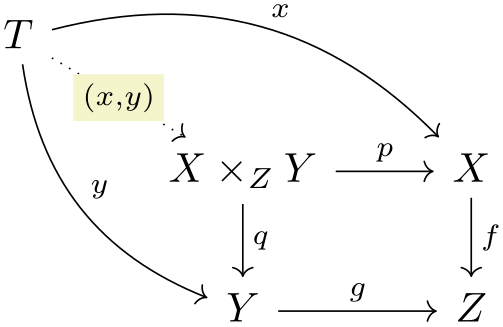
We provide two real-life examples.
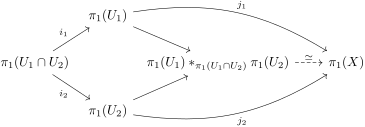
\begin{tikzcd}[column sep=tiny]

    & \pi_1(U_1) \ar[dr] \ar[drr, "j_1", bend left=20]

      &

        &[1.5em] \\

  \pi_1(U_1\cap U_2) \ar[ur, "i_1"] \ar[dr, "i_2"']

    &

      & \pi_1(U_1) \ast_{ \pi_1(U_1\cap U_2)} \pi_1(U_2) \ar[r, dashed, "\simeq"]

        & \pi_1(X) \\

    & \pi_1(U_2) \ar[ur]\ar[urr, "j_2"', bend right=20]

      &

        &

\end{tikzcd}
1.3Changing arrow tips¶
A set of \arrow options is provided to create different kinds of arrows. Some of these options have a short descriptive name, such as hook, and others are named after TeX arrow-producing commands (without a “\”), like dashrightarrow.
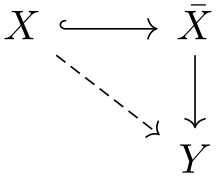
The following list shows all available arrow types (each of them is a style key located in /tikz/commutative diagrams).
Basic arrows¶
| to head | yields  |
| rightarrow | yields  |
| leftarrow | yields  |
| leftrightarrow | yields  |
| Rightarrow | yields  |
| Leftarrow | yields  |
| Leftrightarrow | yields  |
Arrows from bar¶


Arrows with hook¶


Arrows with tail¶


Two-headed arrows¶


Harpoons¶
| harpoon | yields  |
| harpoon' | yields  |
| rightharpoonup | yields  |
| rightharpoondown | yields  |
| leftharpoonup | yields  |
| leftharpoondown | yields  |
Dashed arrows¶


Squiggly arrows¶


Non-arrows¶


A gray cross (  ) in the samples above indicates that the corresponding tip is kept unchanged. This allows several arrow styles to be superimposed.

1.4Alternative syntax for arrows¶
The following forms of the arrow command were used before the appearance of the quotes syntax for labels, and now may seem somewhat convoluted. They are nonetheless still available for backwards compatibility.
Here, ⟨direction⟩ is a string containing the characters r, l, d, u and is used to determine the arrow target. Alternatively, you can specify an explicit matrix cell by replacing ⟨direction⟩ with something of the form ⟨row number⟩-⟨column number⟩, or the name of a node. The trailing ⟨labels⟩ can be the empty string or of the form
-
[⟨label options⟩]{⟨label text⟩}⟨more labels⟩.
The equivalent command \ar can also be used in this form. Here is an example.
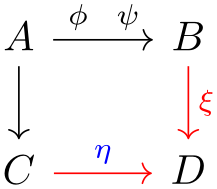
There are further shortened forms:
The first one is equivalent to
-
\arrow[⟨options⟩]{r}⟨labels⟩
and the other ones work analogously.
1.5Usage in plain TeX¶
To use this package in plain TeX, load TikZ and the cd library by saying
The {tikzcd} environment should then be replaced by the following:
All other functions of this library work as described in this manual without change.
1.6Usage in ConTeXt¶
To use this package in ConTeXt, load TikZ and then the cd library by saying
The {tikzcd} environment should then be replaced by the following:
Moreover, you may replace the column and row separators &, \\ by their ConTeXt analogues \NC, \NR. However, you should use \NC only between cells, and not before the first column or after the last column, as in usual ConTeXt tables. Similarly, \NR should be used only between rows.
All other functions of this library work as described in this manual without change.