tkz-euclide
Drawing, filling and clipping
29 Controlling the bounding box
From the PgfManual:
"When you add the clip option, the current path is used for clipping subsequent drawings. Clipping never enlarges the clipping area. Thus, when you clip against a certain path and then clip again against another path, you clip against the intersection of both. The only way to enlarge the clipping path is to end the pgfscope in which the clipping was done. At the end of a pgfscope the clipping path that was in force at the beginning of the scope is reinstalled."
First of all, with TikZ you don’t have to deal with the size of the bounding box. Early versions of tkz-euclide did not control it; since version 4, the size of the bounding box is limited.
The initial bounding box after using the macro \tkzInit is defined by the rectangle based on the points \((0,0)\) and \((10,10)\). The macro \tkzInit modifies this initial bounding box with the arguments xmin, xmax, ymin and ymax. Of course, anything drawn outside modifies the bounding box, which TikZ maintains. You can influence this behavior with TikZ commands or options, such as \useasboundingbox or the option use as bounding box. You can then reserve a box for a figure, but the figure may overflow the box and spread over the main text. The command \pgfresetboundingbox clears the bounding box and starts a new one.
29.1 Utility of \tkzInit
However, it is sometimes necessary to control the size of what is displayed. To do this, you need to prepare the bounding box you are going to work in: this is the role of the macro \tkzInit. For some drawings, it is useful to fix the extreme values (xmin, xmax, ymin and ymax) and to clip this rectangle, in order to control the size of the figure as well as possible.
Two macros are useful to control the bounding box:
I have also added macros directly linked to the bounding box: you can display it or clip it (see below).
29.2 \tkzInit
\tkzInit[⟨local options⟩]
| options | default | definition |
|---|---|---|
| xmin | 0 | minimum value of the abscissae in cm |
| xmax | 10 | maximum value of the abscissae in cm |
| xstep | 1 | difference between two graduations in \(x\) |
| ymin | 0 | minimum y-axis value in cm |
| ymax | 10 | maximum y-axis value in cm |
| ystep | 1 | difference between two graduations in \(y\) |
The role of \tkzInit is to define an orthogonal coordinate system and a rectangular part of the plane, in which you place your drawings with Cartesian coordinates. This macro defines your working area, as on a graphing calculator. Since version 4 of tkz-euclide, \xstep and \ystep are always 1, so \tkzInit is mostly useful for actions such as clipping out.
29.3 \tkzClip
\tkzClip[⟨local options⟩]
This macro hides everything outside the rectangle defined by (xmin ; ymin) and (xmax ; ymax).
| options | default | definition |
|---|---|---|
| space | 1 | added value on the right, left, bottom and top of the background |
The option space enlarges the visible part of the drawing, which becomes the rectangle defined by (xmin-space ; ymin-space) and (xmax+space ; ymax+space). space can be negative! The unit is the cm and must not be written.
This macro clips the initial rectangle, so that only the paths inside this rectangle are drawn.
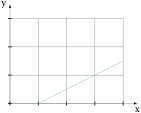
\begin{tikzpicture}

 \tkzInit[xmax=4, ymax=3]

 \tkzDefPoints{-1/-1/A,5/2/B}

 \tkzDrawX \tkzDrawY

 \tkzGrid

 \tkzClip

 \tkzDrawSegment(A,B)

\end{tikzpicture}
You can add a bit of space:
\tkzClip[space=1]
29.4 \tkzClip and the option space
This option adds some space around the clipped rectangle.
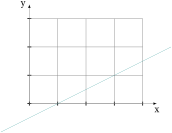
\begin{tikzpicture}

 \tkzInit[xmax=4, ymax=3]

 \tkzDefPoints{-1/-1/A,5/2/B}

 \tkzDrawX \tkzDrawY

 \tkzGrid

 \tkzClip[space=1]

 \tkzDrawSegment(A,B)

\end{tikzpicture}
The dimensions of the clipped rectangle are xmin-1, ymin-1, xmax+1 and ymax+1.
29.5 \tkzShowBB
The simplest macro.
\tkzShowBB[⟨local options⟩]
This macro displays the bounding box as a rectangular frame. It accepts TikZ options.
29.5.1 Example with \tkzShowBB
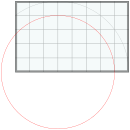
\begin{tikzpicture}[scale=.5]

  \tkzInit[ymax=5,xmax=8]

  \tkzGrid

  \tkzDefPoint(3,0){A}

   \begin{scope}

    \tkzClipBB

    \tkzDefCircle[R](A,5) \tkzGetPoint{a}

    \tkzDrawCircle(A,a)

    \tkzShowBB[line width = 4pt,fill=teal!10,%

              opacity=.4]

   \end{scope}

\tkzDefCircle[R](A,4) \tkzGetPoint{b}

\tkzDrawCircle[red](A,b)

\end{tikzpicture}
29.6 \tkzClipBB
\tkzClipBB
The idea is to limit the next constructions to the current bounding box.
29.6.1 Example with \tkzClipBB and the bisectors
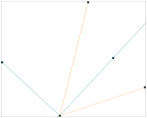
  \begin{tikzpicture}

  \tkzInit[xmin=-3,xmax=6, ymin=-1,ymax=6]

  \tkzDefPoint(0,0){O}\tkzDefPoint(3,1){I}

  \tkzDefPoint(1,4){J}

  \tkzDefLine[bisector](I,O,J) \tkzGetPoint{i}

  \tkzDefLine[bisector out](I,O,J) \tkzGetPoint{j}

  \tkzDrawPoints(O,I,J,i,j)

  \tkzClipBB

  \tkzDrawLines[add = 1 and 2,color=orange](O,I O,J)

  \tkzDrawLines[add = 1 and 2](O,i O,j)

  \tkzShowBB

  \end{tikzpicture}
30 Clipping different objects
30.1 Clipping a polygon
\tkzClipPolygon[⟨local options⟩](⟨points list⟩)
This macro restricts the drawings to the given polygon.
| arguments | example | explanation |
|---|---|---|
| (⟨pt1,pt2,pt3,…⟩) | (⟨A,B,C⟩) | |
| options | default | definition |
| out | clips the outside of the object |
30.1.1 \tkzClipPolygon
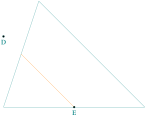
  \begin{tikzpicture}[scale=1.25]

  \tkzDefPoint(0,0){A}

  \tkzDefPoint(4,0){B}

  \tkzDefPoint(1,3){C}

  \tkzDrawPolygon(A,B,C)

  \tkzDefPoint(0,2){D}

  \tkzDefPoint(2,0){E}

  \tkzDrawPoints(D,E)

  \tkzLabelPoints(D,E)

  \tkzClipPolygon(A,B,C)

  \tkzDrawLine[new](D,E)

\end{tikzpicture}
30.1.2 \tkzClipPolygon[out]

  \begin{tikzpicture}[scale=1]

  \tkzDefPoint(0,0){P1}

  \tkzDefPoint(4,0){P2}

  \tkzDefPoint(4,4){P3}

  \tkzDefPoint(0,4){P4}

  \tkzDefPoint(1,1){Q1}

  \tkzDefPoint(3,1){Q2}

  \tkzDefPoint(3,3){Q3}

  \tkzDefPoint(1,3){Q4}

  \tkzDrawPolygon(P1,P2,P3,P4)

  \begin{scope}

     \tkzClipPolygon[out](Q1,Q2,Q3,Q4)

    \tkzFillPolygon[teal!20](P1,P2,P3,P4)

  \end{scope}

  \tkzDrawPolygon(Q1,Q2,Q3,Q4)

  \end{tikzpicture}
30.1.3 Example: use of Clip for Sangaku in a square
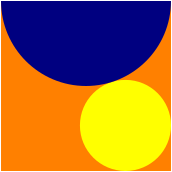
\begin{tikzpicture}[scale=.75]

 \tkzDefPoint(0,0){A} \tkzDefPoint(8,0){B}

 \tkzDefSquare(A,B)   \tkzGetPoints{C}{D}

 \tkzDefPoint(4,8){F}

 \tkzDefTriangle[equilateral](C,D)

 \tkzGetPoint{I}

 \tkzDefPointBy[projection=onto B--C](I)

 \tkzGetPoint{J}

 \tkzInterLL(D,B)(I,J)  \tkzGetPoint{K}

 \tkzDefPointBy[symmetry=center K](B)

 \tkzGetPoint{M}

 \tkzClipPolygon(B,C,D,A)

 \tkzFillPolygon[color = orange](A,B,C,D)

 \tkzFillCircle[color = yellow](M,I)

 \tkzFillCircle[color = blue!50!black](F,D)

\end{tikzpicture}
30.2 Clipping a disc
\tkzClipCircle[⟨local options⟩](⟨A,B⟩)
| arguments | example | explanation |
|---|---|---|
| (⟨A,B⟩) | (⟨A,B⟩) | AB radius |
| options | default | definition |
|---|---|---|
| out | clips the outside of the object |
You don’t need to write radius, because it is the default option.
30.2.1 Simple clip

\begin{tikzpicture}[scale=.5]

  \tkzDefPoint(0,0){A} \tkzDefPoint(2,2){O}

  \tkzDefPoint(4,4){B} \tkzDefPoint(5,5){C}

  \tkzDrawPoints(O,A,B,C)

  \tkzLabelPoints(O,A,B,C)

  \tkzDrawCircle(O,A)

  \tkzClipCircle(O,A)

  \tkzDrawLine(A,C)

  \tkzDrawCircle[fill=teal!10,opacity=.5](C,O)

\end{tikzpicture}
30.3 Clip out
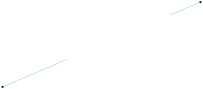
\begin{tikzpicture}

  \tkzInit[xmin=-3,ymin=-2,xmax=4,ymax=3]

   \tkzDefPoint(0,0){O}

   \tkzDefPoint(-4,-2){A}

   \tkzDefPoint(3,1){B}

   \tkzDefCircle[R](O,2) \tkzGetPoint{o}

   \tkzDrawPoints(A,B) % to have a good bounding box

   \begin{scope}

    \tkzClipCircle[out](O,o)

    \tkzDrawLines(A,B)

   \end{scope}

\end{tikzpicture}
30.4 Intersection of disks

\begin{tikzpicture}

\tkzDefPoints{0/0/O,4/0/A,0/4/B}

\tkzDrawPolygon[fill=teal](O,A,B)

\tkzClipPolygon(O,A,B)

\tkzClipCircle(A,O)

\tkzClipCircle(B,O)

\tkzFillPolygon[white](O,A,B)

\end{tikzpicture}
See a more complex example of clipping in section 51.6.
30.5 Clipping a sector
☞ 💣 Note that the arguments depend on the options.
\tkzClipSector[⟨local options⟩](⟨O,…⟩)(⟨…⟩)
| options | default | definition |
|---|---|---|
| towards | towards | \(O\) is the center and the sector starts from \(A\) to \((OB)\) |
| rotate | towards | The sector starts from \(A\) and the angle determines its amplitude. |
| R | towards | We give the radius and two angles |
Of course, you can add all the TikZ styles for the drawings.
| options | arguments | example |
|---|---|---|
| towards | (⟨pt,pt⟩)(⟨pt⟩) | \tkzClipSector(O,A)(B) |
| rotate | (⟨pt,pt⟩)(⟨angle⟩) | \tkzClipSector[rotate](O,A)(90) |
| R | (⟨pt,\(r\)⟩)(⟨angle 1,angle 2⟩) | \tkzClipSector[R](O,2)(30,90) |
30.5.1 Clipping a sector: first example
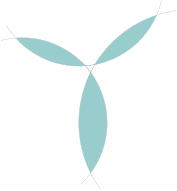
\begin{tikzpicture}[scale=0.5]

\tkzDefPoint(0,0){a}

\tkzDefPoint(12,0){b}

\tkzDefPoint(4,10){c}

\tkzInterCC[R](a,6)(b,8)

\tkzGetFirstPoint{AB1} \tkzGetSecondPoint{AB2}

\tkzInterCC[R](a,6)(c,6)

\tkzGetFirstPoint{AC1} \tkzGetSecondPoint{AC2}

\tkzInterCC[R](b,8)(c,6)

\tkzGetFirstPoint{BC1} \tkzGetSecondPoint{BC2}

\tkzDrawArc(a,AB2)(AB1)

\tkzDrawArc(b,AB1)(AB2)

\tkzDrawArc(a,AC2)(AC1)

\tkzDrawArc(c,AC1)(AC2)

\tkzDrawArc(b,BC2)(BC1)

\tkzDrawArc(c,BC1)(BC2)

\begin{scope}

\tkzClipSector(b,BC2)(BC1)

\tkzFillSector[teal!40!white](c,BC1)(BC2)

\end{scope}

\begin{scope}

\tkzClipSector(a,AB2)(AB1)

\tkzFillSector[teal!40!white](b,AB1)(AB2)

\end{scope}

\begin{scope}

\tkzClipSector(a,AC2)(AC1)

\tkzFillSector[teal!40!white](c,AC1)(AC2)

\end{scope}

\end{tikzpicture}
30.5.2 Clipping a sector: second example
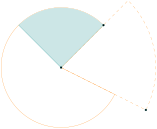
\begin{tikzpicture}[scale=1.5]

  \tkzDefPoint(0,0){O}

  \tkzDefPoint(2,-1){A}

  \tkzDefPoint(1,1){B}

  \tkzDrawSector[new,dashed](O,A)(B)

  \tkzDrawSector[new](O,B)(A)

\begin{scope}

\tkzClipSector(O,B)(A)

\tkzDefSquare(O,B) \tkzGetPoints{B'}{O'}

\tkzDrawPolygon[color=teal,fill=teal!20](O,B,B',O')

\end{scope}

\tkzDrawPoints(A,B,O)

\end{tikzpicture}
30.6 TikZ options: trim left or trim right
See the pgfmanual.
30.7 TikZ Controls \pgfinterruptboundingbox and \endpgfinterruptboundingbox
This command temporarily interrupts the calculation of the bounding box and starts a new one. See the pgfmanual
30.7.1 Controlling the bounding box
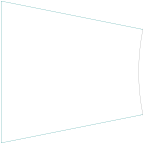
\begin{tikzpicture}

\tkzDefPoint(0,5){A}\tkzDefPoint(5,4){B}

\tkzDefPoint(0,0){C}\tkzDefPoint(5,1){D}

\tkzDrawSegments(A,B C,D A,C)

\pgfinterruptboundingbox

   \tkzInterLL(A,B)(C,D)\tkzGetPoint{I}

\endpgfinterruptboundingbox

\tkzClipBB

\tkzDrawCircle(I,B)

\end{tikzpicture}
30.8 Reverse clip: tkzreverseclip
To use this option, a bounding box must be defined.
  \tikzset{tkzreverseclip/.style={insert path={

     (current bounding box.south west) --(current bounding box.north west)

   --(current bounding box.north east) --  (current bounding box.south east)

   -- cycle} }}
30.8.1 Example with \tkzClipPolygon[out]
\tkzClipPolygon[out], \tkzClipCircle[out] use this option.

\begin{tikzpicture}[scale=1]

\tkzInit[xmin=-5,xmax=5,ymin=-4,ymax=6]

\tkzClip

\tkzDefPoints{-.5/0/P1,.5/0/P2}

\foreach \i [count=\j from 3] in {2,...,7}{%

    \tkzDefShiftPoint[P\i]({45*(\i-1)}:1){P\j}}

\tkzClipPolygon[out](P1,P...,P8)

\tkzCalcLength(P1,P5)\tkzGetLength{r}

\begin{scope}[blend group=screen]

  \foreach \i in {1,...,8}{%

   \tkzDefCircle[R](P\i,\r) \tkzGetPoint{x}

   \tkzFillCircle[color=teal](P\i,x)}

  \end{scope}

\end{tikzpicture}