The nicematrix package
4 The blocks
4.1 General case
In the environments of nicematrix, it’s possible to use the command \Block in order to place an element in the center of a rectangle of merged cells of the array.1
The command \Block must be used in the upper leftmost cell of the cells of the block with two mandatory arguments.
The first argument is the size of the block with the syntax \(i\)-\(j\) where \(i\) is the number of rows of the block and \(j\) its number of columns.
If this argument is empty, its default value is 1-1. If the number of rows is not specified, or equal to *, the block extends until the last row (idem for the columns).
The second argument is the content of the block. In {NiceTabular}, {NiceTabular*} and {NiceTabularX}, the content of the block is composed in text mode whereas, in the other environments, it is composed in math mode.
Due to technical reasons of LaTeX, it’s not possible to use \color at the beginnning of the content of the block (but it’s possible to use \textcolor).2
Here is an example of use of the command \Block in mathematical matrices.

One may wish to raise the size of the “\(A\)” placed in the block of the previous example. Since this element is composed in math mode, it’s not possible to use directly a command like \large, \Large and \LARGE. That’s why the command \Block provides an option between angle brackets to specify some TeX code which will be inserted before the beginning of the math mode.3

In fact, the command \Block accepts as first optional argument (between square brackets) a list of pairs key=value.
First, there are keys which are quick tools to control the appearance of the block.
the key fill takes in as value a color and fills the block with that color;
the key opacity sets the opacity of the filling color specified by fill;4
the key draw strokes the frame of the block with the current color for the rules (however, it’s possible to use another color by providing it as value of the key draw);
the keys hlines, vlines and hvlines draw all the corresponding rules in the block;5
the key rules/width is the width of the rules (is relevant only when one of the keys draw, hvlines, vlines and hlines is used);
the key rules/width is the width of the rules (is relevant only when one of the keys hvlines, vlines and hlines is used);
the key rounded-corners requires rounded corners (for the frame drawn by draw and the shape drawn by fill) with a radius equal to the value of that key (the default value is 4 pt, which is the initial value of the rounded corners of TikZ)6 ;
Sometimes, these tools are not sufficient to control the appearance of the block. The following keys are more powerful but also more difficult to use. Moreover, the require the loading of TikZ by the user (with \usepackage{tikz}). By default, nicematrix does not load TikZ but only pgf, which is a sublayer of TikZ.
The key borders provides the ability to draw only some borders of the blocks; the value of that key is a (comma-separated) list of elements covered by left, right, top, bottom and all; it’s possible, in fact, in the list which is the value of the key borders, to add an entry of the form tikz={list} where list is a list of couples key=value of TikZ specifying the graphical characteristics of the lines that will be drawn (cf. example 18.7). When the key borders is used without value, it is equivalent to the key draw (without value).
When the key tikz is used, the TikZ path corresponding of the rectangle which delimits the block is executed with TikZ7 by using as options the value of that key tikz (which must be a list of keys allowed for a TikZ path).
In fact, in the list of the keys provided by the user as value of tikz, it’s possible to put a key offset. That key is not provided by TikZ but by nicematrix. It will narrow the rectangular frame corresponding to the block by a margin (horizontally and vertically) equal to the value (of that key offset). That new frame, a bit narrower, will be executed by TikZ with options which are the other keys in the list of keys provided as value to the key tikz of \Block.
New 7.11 : Two more precise keys, xoffset and yoffset, are provided.
There is also some technical keys:
the key name provides a name to the rectangular TikZ node corresponding to the block; it’s possible to use that name with TikZ in the \CodeAfter of the environment (cf. 12);
the key respect-arraystretch prevents the setting of \arraystretch to \(1\) at the beginning of the block (which is the behaviour by default) ;
By default, the rules are not drawn in the blocks (see the section about the rules: section 5). However, if the key transparent is used, the rules are drawn. For an example, see section 18.2. Caution: that key does not imply that the content of the block will be transparent!
New 7.12
With the key empty, all the cells of the block are declared as “empty”, which has impact on several functionalities of nicematrix, for example the key corners for the computation of the “empty corners” (cf. 5.3.3).
There is also keys for the horizontal and vertical positions of the content of the block: cf. 4.5.
One must remark that, by default, the commands \Blocks don’t create space. There is exception only for the blocks mono-column and the blocks mono-row under some conditions as explained just below.
In the following example, we have had to enlarge by hand the columns 2 and 3 (with the construction w{c}{...} of array).

\begin{NiceTabular}{cw{c}{2cm}w{c}{3cm}c}

  rose & tulip & daisy & dahlia \\

  violet

    & \Block[C,draw=red,fill=[RGB]{204,204,255},rounded-corners]{2-2}

            {\LARGE Some beautiful flowers} & & marigold \\

  iris & & & lis \\

  arum & periwinkle & forget-me-not &  hyacinth

\end{NiceTabular}
4.2 The mono-column blocks
The mono-column blocks have a special behaviour.
The natural width of the contents of these blocks is taken into account for the width of the current column.
In the columns with a fixed width (columns w{...}{...}, W{...}{...}, p{...}, b{...}, m{...}, V and X), the content of the block is formatted as a paragraph of that width.
The specification of the horizontal position provided by the type of column (c, r or l) is taken into account for the blocks. For a block in a column ot type p{...}, b{...}, m{...}, V{...} ou X, the alignment c will be used by default. However, those types of columns may have an optional argument for the horizontal alignment (eg: p[l]{...}) and, in that case, that type of alignement is passed to the block.
Of course, the \Block may also have its own specification of alignment: cf. 4.5.
The specifications of font specified for the column by a construction >{...} in the preamble of the array are taken into account for the mono-column blocks of that column (this behaviour is probably expected).
4.3 The mono-row blocks
For the mono-row blocks, the natural height and depth are taken into account for the height and depth of the current row (as does a standard \multicolumn of LaTeX), except when an option of vertical position has been used for the block (one of the keys t, b, m, T and B described in the part 4.6).
4.4 The mono-cell blocks
A mono-cell block inherits all the properties of the mono-row blocks and mono-column blocks.
At first sight, one may think that there is no point using a mono-cell block. However, there are some good reasons to use such a block.
It’s possible to use the command \\ in a (mono-cell) block.
It’s possible to split the cell in several sub-cells with & when the key &-in-blocks is in force (cf. 4.7).
It’s possible to use the option of horizontal alignment of the block in derogation of the type of column given in the preamble of the array.
It’s possible do draw a frame around the cell with the key draw of the command \Block and to fill the background with rounded corners with the keys fill and rounded-corners.8
It’s possible to draw one or several borders of the cell with the key borders.
4.5 Horizontal position of the content of the block
The command \Block accepts the keys l, c and r for the horizontal position of its content.

By default, the horizontal position of the content of a block is computed by using the positions of the contents of the columns implied in that block. That’s why, in the following example, the header “First group” is correctly centered despite the instruction !{\qquad} in the preamble which has been used to increase the space between the columns (this is not the behaviour of \multicolumn).
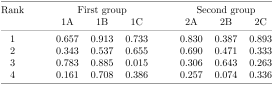
\begin{NiceTabular}{@{}c!{\qquad}ccc!{\qquad}ccc@{}}

\toprule

  Rank & \Block{1-3}{First group} & & & \Block{1-3}{Second group} \\

       & 1A & 1B & 1C & 2A & 2B & 2C \\

\midrule

  1 & 0.657 & 0.913 & 0.733 & 0.830 & 0.387 & 0.893\\

  2 & 0.343 & 0.537 & 0.655 & 0.690 & 0.471 & 0.333\\

  3 & 0.783 & 0.885 & 0.015 & 0.306 & 0.643 & 0.263\\

  4 & 0.161 & 0.708 & 0.386 & 0.257 & 0.074 & 0.336\\

\bottomrule

\end{NiceTabular}
In order to have an horizontal positioning of the content of the block computed with the limits of the columns of the LaTeX array (and not with the contents of those columns), one may use the key L, R and C of the command \Block.9
Here is the same example with the key C for the first block.
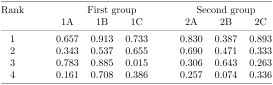
\begin{NiceTabular}{@{}c!{\qquad}ccc!{\qquad}ccc@{}}

\toprule

  Rank & \Block[C]{1-3}{First group} & & & \Block{1-3}{Second group} \\

       & 1A & 1B & 1C & 2A & 2B & 2C \\

\midrule

  1 & 0.657 & 0.913 & 0.733 & 0.830 & 0.387 & 0.893\\

  2 & 0.343 & 0.537 & 0.655 & 0.690 & 0.471 & 0.333\\

  3 & 0.783 & 0.885 & 0.015 & 0.306 & 0.643 & 0.263\\

  4 & 0.161 & 0.708 & 0.386 & 0.257 & 0.074 & 0.336\\

\bottomrule

\end{NiceTabular}
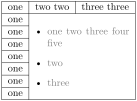
The command \Block supports also the keys p and j. With the key p, the content of the block is formatted like a paragraph (as in a column of type p). That key may be used in conjunction with a key l, c or r, and, in that case, the paragraph is formatted with \raggedright, \centering or \raggedleft (or \RaggedRight, \Centering and \RaggedLeft when ragged2e is loaded). With the key j (which inforces the key p), the paragraph is justified.
It’s possible to put an environment {itemize} or {enumerate} in a block which uses the key p or j (in the other case, you will have a LaTeX error: Not allowed in LR mode). For the following example, we have loaded the package enumitem (for the key left of the environment {itemize}).
\usepackage{enumitem} % in the preamble
4.6 Vertical position of the content of the block
For the vertical position, the command \Blocks supports the keys m, t, b, T and B.
With the key m10, the content of the block is vertically centered.
With the key t, the baseline of the content of the block is aligned with the baseline of the first row concerned by the block.
with the key b, the baseline of the last row of the content of the block (we recall that the content of a block may contain several lines of text separated by \\) is aligned with the baseline of the last of the rows of the array involved in the block.
With the key T, the content of the block is set upwards.
No vertical margin is added. However, the contents of the block is (always) composed by nicematrix in a {minipage}, a {tabular} or an {array} and, hence, there will still remain a margin (in most cases). If needed, it’s always possible to add a \strut...
With the key B, the content of the block is set downwards.
When no key is given, the key m applies (except in the mono-row blocks).
\NiceMatrixOptions{rules/color=[gray]{0.75}, hvlines}
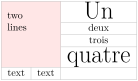
\begin{NiceTabular}{ccc}

  \Block[fill=red!10,t,l]{4-2}{two\\lines}

   & & \Huge Un\\

   & & deux  \\

   & & trois  \\

   & & \Huge quatre  \\

  text & text \\

\end{NiceTabular}
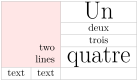
\begin{NiceTabular}{ccc}

\Block[fill=red!10,b,r]{4-2}{two\\lines}

   & & \Huge Un\\

   & & deux  \\

   & & trois  \\

   & & \Huge quatre  \\

  text & text \\

\end{NiceTabular}
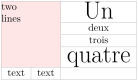
\begin{NiceTabular}{ccc}

  \Block[fill=red!10,T,L]{4-2}{two\\lines}

   & & \Huge Un\\

   & & deux  \\

   & & trois  \\

   & & \Huge quatre  \\

  text & text \\

\end{NiceTabular}
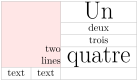
\begin{NiceTabular}{ccc}

\Block[fill=red!10,B,R]{4-2}{two\\lines}

   & & \Huge Un\\

   & & deux  \\

   & & trois  \\

   & & \Huge quatre  \\

  text & text \\

\end{NiceTabular}
4.7 \\ and & in the blocks
The extension nicematrix provides the ability to use \\ and & directly in the content of a block (in order to format its contents) but there is some rectrictions.
One must not use both \\ and & in the same block.
For \\, there is no other restriction. It’s possible to use \\ in a block to format a text on several lines.
In order to use &, the key ampersand-in-blocks (alias: &-in-blocks) must been activated11. Then, the block is divided in sub-blocks as illustrated below. Be careful: when ampersand-in-blocks is in force, the (main) argument of the command \Block is syntactically divided into sub-blocks by splitting on the ampersands &, the ampersands between curly braced are protected but not those in an environment.12
With the ampersand &, it’s possible to divide horizontally a block in sub-blocks of the same size.
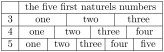
\begin{NiceTabular}{ll}%

   [hvlines,ampersand-in-blocks]

    & the five first naturels numbers \\

  3 & \Block{}{one & two & three} \\

  4 & \Block{}{one& two & three & four} \\

  5 & \Block{}{one & two & three & four & five} \\

\end{NiceTabular}
As we can see, the blocks (which was are in fact mono-cell blocks) are divided into sub-blocks of the same size. However, maybe the following code would be prefered.
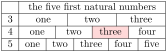
\begin{NiceTabular}{lccccc}%

   [hvlines,ampersand-in-blocks]

    & \Block{1-5}{the five first

                   natural numbers} \\

  3 & \Block{1-5}{one & two & three} \\

  4 & \Block{1-5}{one& two &

         \cellcolor{red!15} three & four} \\

  5 & one & two & three & four & five \\

\end{NiceTabular}
In this code, we have blocks of size 1-5 which are divided into three or four sub-blocks.
We have illustrated the fact that it’s possible to color the background of a subcell of the block by using the key \cellcolor.
4.8 The key create-blocks-in-col
The key create-blocks-in-col takes in as argument a list of numbers of columns and, for each of those columns, creates within that column a block for each non-empty cell (that block will enclose that non-empty cell and all the following empty cells in the column).
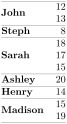
These blocks will be, as all the blocks, taken into account for the rules (drawn by vlines, hlines, etc.: cf. 5) and the commands that color the background of the cells (cf. 6.2). That the point using the key create-blocks-in-col.

\begin{NiceTabular}{lr}[hvlines,create-blocks-in-col=1]

\rowcolors{blue!10}{}[respect-blocks]

  John      & 12 \\

            & 13 \\

  Steph     &  8 \\

  Sarach    & 18 \\

            & 17 \\

            & 15 \\

  Ashley    & 20 \\

  Henry     & 14 \\

  Madison   & 15 \\

            & 19

\end{NiceTabular}
1 The spaces after a command \Block are deleted.
2 cf. https://tex.stackexchange.com/questions/674788
3 This argument between angular brackets may also be used to insert a command of font such as \bfseries when the command \\ is used in the content of the block. It’s also possible to put in that optional argument the command \rotate provided by nicematrix (cf. 14.6).
4 Caution: that feature creates instructions of transparency in the pdf and some readers of pdf don’t support such instructions. The opacity is applied by using \pgfsetfillopacity.
5 However, the rules are not drawn in the sub-blocks of the block, as always with nicematrix: the rules are not drawn in the blocks, except when they have the key transparent (cf. 5).
6 There is also a key rounded-corners available for an environment of nicematrix (cf. 14.2).
7 TikZ should be loaded (by default, nicematrix only loads pgf) and, if it’s not, an error will be raised.
8 If one simply wishes to color the background of a unique cell, there is no point using the command \Block: it’s possible to use the command \cellcolor.
9 Remark: The keys L, C and R require less computations than the keys l, c and r. If you are concernend about efficiency, you should use by default \Block[C].
10 That key has an alias: v-center.
11 Otherwise, the use of & in the command \Block will raise a TeX error :
! Extra alignment tab has been changed to \cr.
12 It’s not possible to write \Block[ampersand-in-blocks]{}{\begin{array}{cc}1&2\end{array}}. Of course, it’s possible without the key ampersand-in-blocks.